Working with Notes
The Notes module is the shared knowledge and internal documentation space in ZeyOS. Teams use it for procedures, handover notes, FAQs, process descriptions, and other information that should remain searchable inside the platform.
What This Page Is For
Use Notes when information should stay editable, searchable, and collaborative inside ZeyOS instead of being lost in email threads or private files.
What You See on the Page
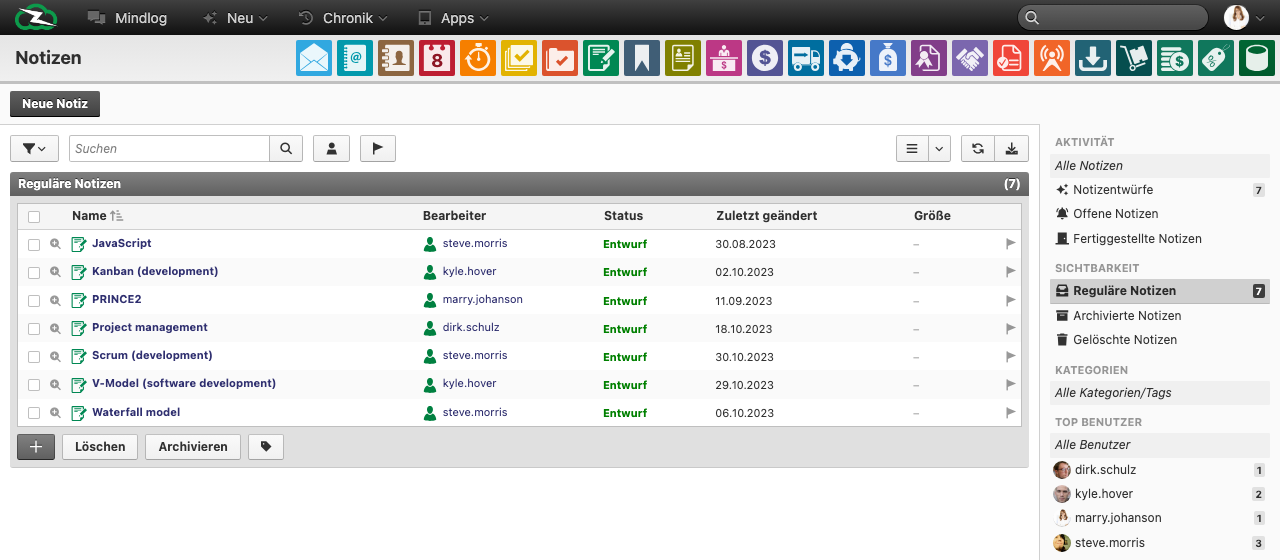
The overview centers on a list of notes you can access. Typical fields include:
- Name
- Assignee
- Status
- Last modified
Standard controls include:
- a New Note action
- search and filter tools
- status and visibility filters
- tag or category filters
- user-based filters
- bulk actions such as Delete, Archive, and Tags

The filter bar sits above the list. Use the funnel icon to set conditions, the search field for quick lookups, and the user icon to filter by assignee.
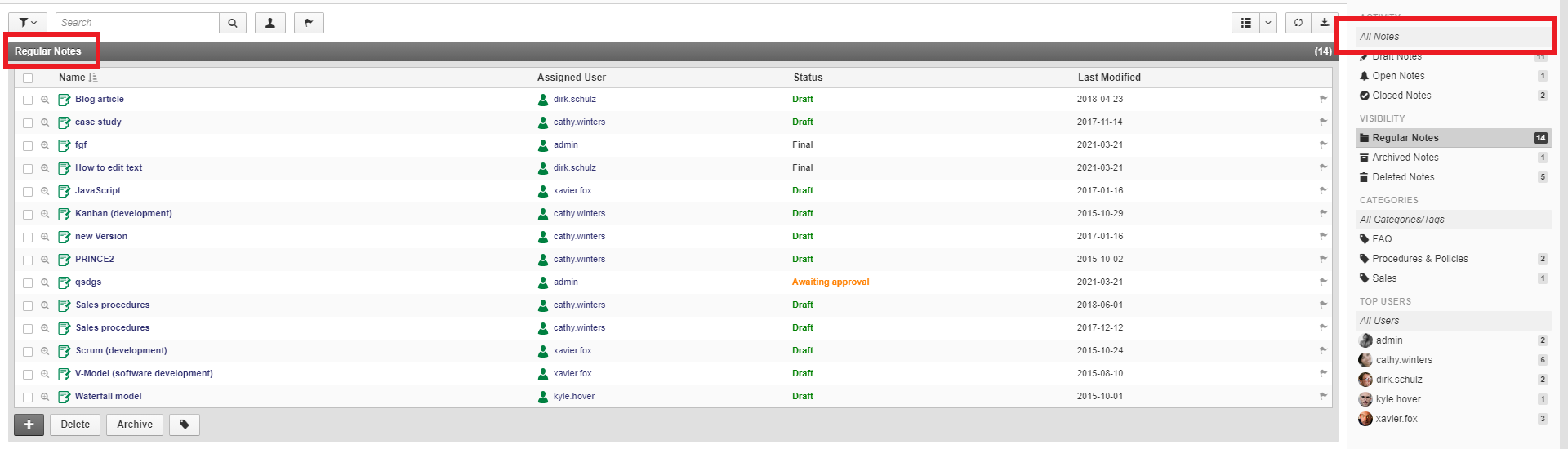
The right sidebar organizes your notes into activity counts and visibility buckets. Regular Notes shows active content, while Archived and Deleted keep history accessible without cluttering the main list.
Typical Workflow
- Create the note and enter a clear, durable title.
- Set the responsible user and the correct owner or visibility scope.
- Write the content and add tags or categories.
- Move the note through the relevant review status.
- Archive obsolete notes instead of deleting them when historical context still matters.
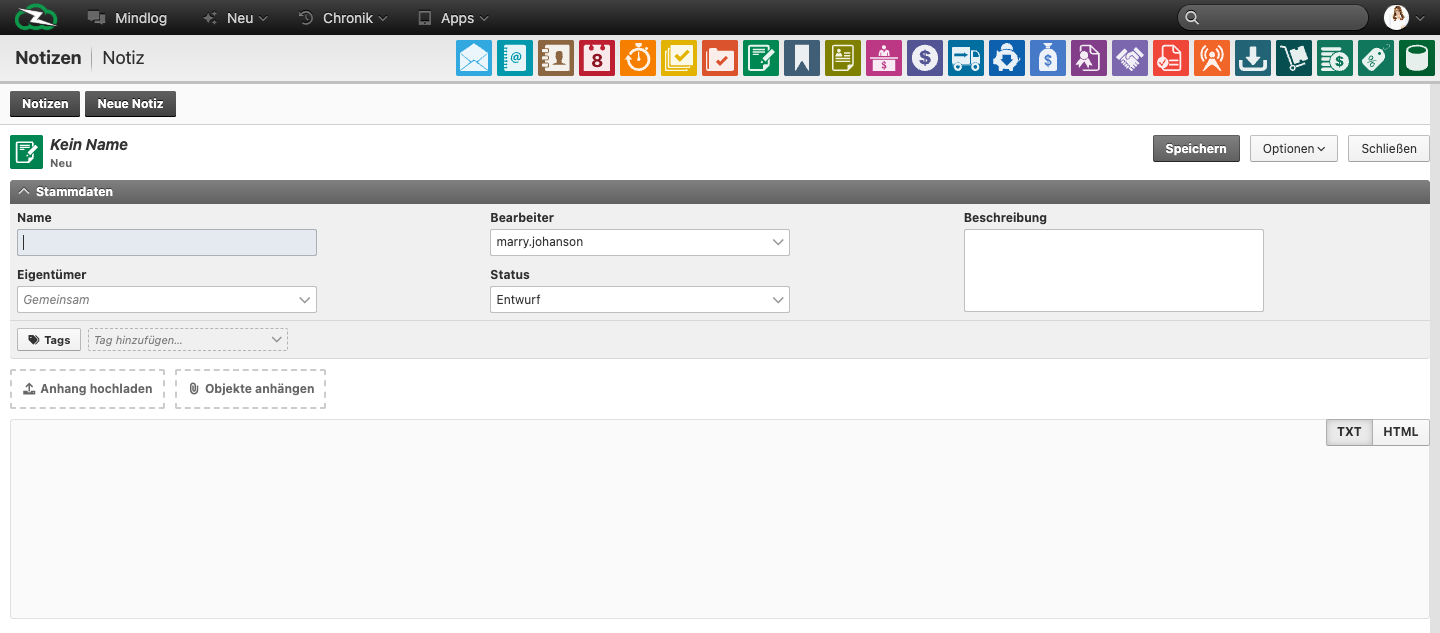
When creating a note, fill in the Name and assign a responsible user. Set the Owner to control visibility — a public note is visible to all users, a group note to members of the selected group. The rich text editor supports formatting, attachments, and HTML mode.
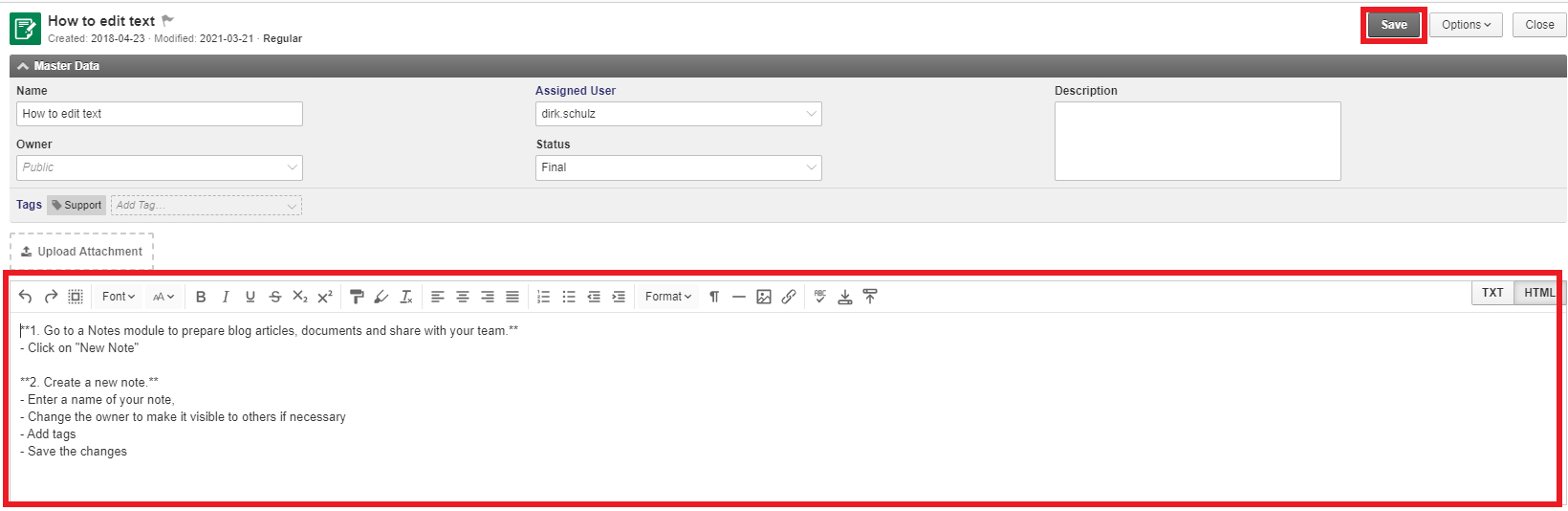
Use the Save button whenever you want to preserve changes. The editor toolbar supports headings, lists, links, images, and code formatting. Switch between TXT and HTML mode using the buttons in the top right corner of the editor area.
Note Status Workflow
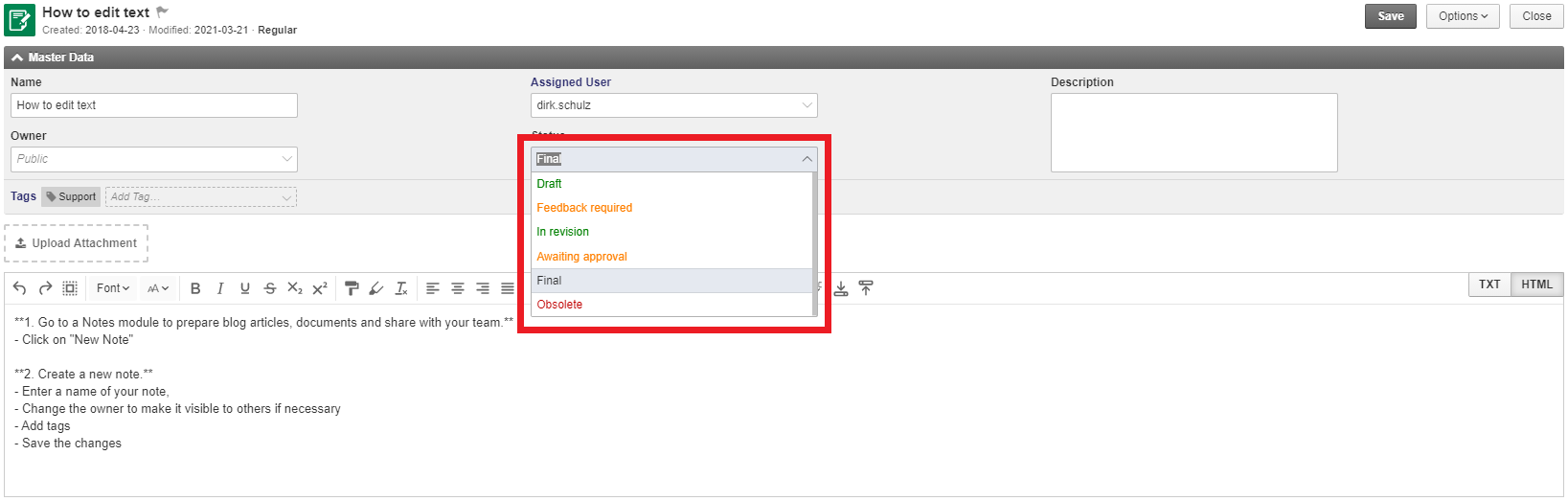
Notes usually move through three broad phases:
- Drafts such as
DraftorIn Revisionwhile the content is still being written. - Open review states such as
Feedback RequiredorAwaiting Approvalwhile others need to react. - Completed states such as
FinalorObsoleteonce the note is stable or superseded.
This workflow matters because it separates unfinished internal writing from trusted operational knowledge.
How Notes Differ from Documents and Files
- Notes are internal knowledge records with text-first content and lightweight workflow.
- Documents are controlled document records with numbering, visibility, and attached files.
- Files are the stored binaries and generated outputs visible in the file browser.
Use Notes for shared knowledge. Use Documents when the file itself is the business object.
Best Practices
- Keep titles stable and descriptive so notes remain searchable over time.
- Use categories for taxonomy and tags for cross-cutting labels.
- Prefer archiving or marking content obsolete over deleting operational knowledge.
- Use ownership and visibility deliberately so the right teams can maintain the content.
Related Topics
- Documents - Manage controlled document records with attached files.
- Files - Browse the stored file layer directly.
- Calendar - Plan meetings and follow-up activity around note content.
- Tags & Categories - Organize notes with shared classification rules.