Links
The Links module is a simple bookmark manager for storing and sharing URLs within your team. Open it via Apps > Links. In addition to URLs, each link entry can store login credentials (username and password), making it a convenient way to share access information for external services.
The Links Overview
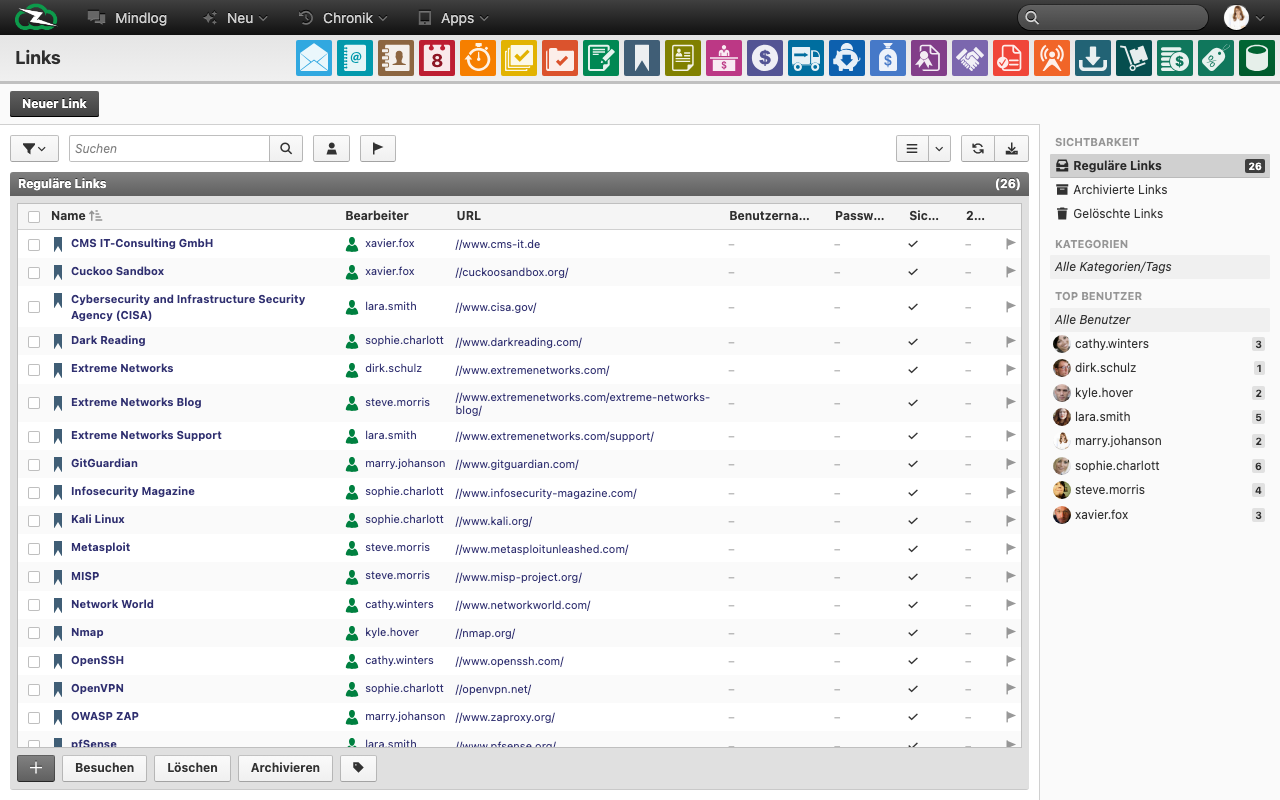
The main view shows a list of all saved links.
Columns
| Column | Description |
|---|---|
| Name | The title or label of the link. |
| Assignee | The user responsible for the link. |
| URL | The web address. |
| Username | An optional username for the linked service. |
| Password | An optional password, displayed as dots for security. |
Top Button
Click New Link to create a new link entry.
Sidebar Filters
The right sidebar organizes links by:
| Section | Description |
|---|---|
| Visibility | Regular, Archived, or Deleted links. |
| Categories/Tags | Filter by tags. |
| Top Users | Filter by the assignee. |
Bottom Toolbar
Select links using checkboxes to access bulk actions:
- Visit — Open the selected link in a new browser tab.
- Delete — Move selected links to deleted state.
- Archive — Archive selected links.
Creating a Link
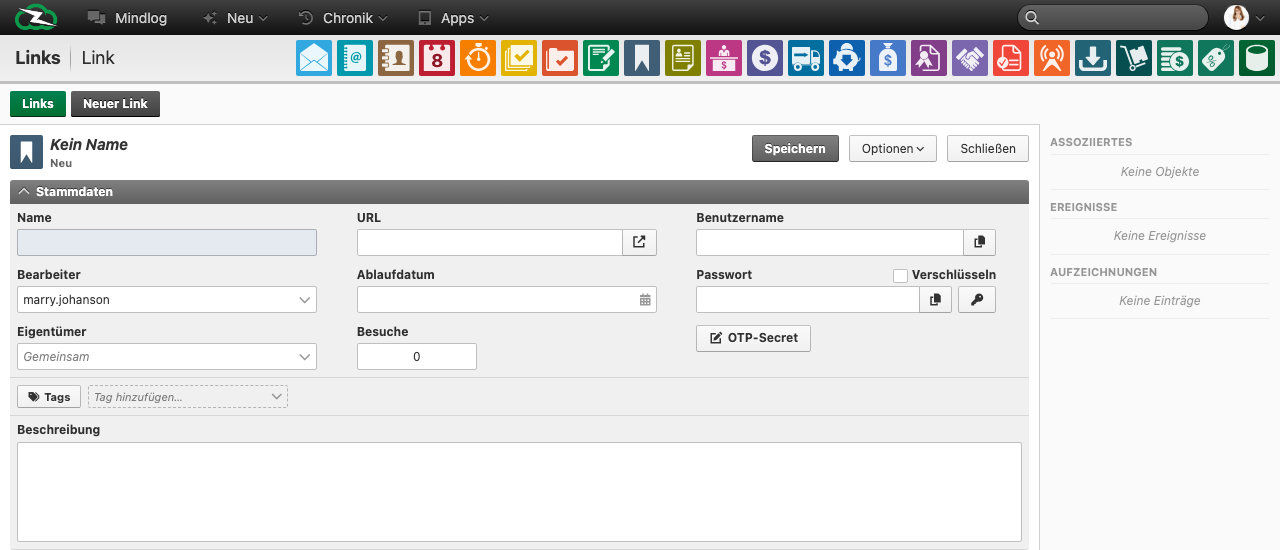
- Click New Link or the + button.
- Fill in the fields:
| Field | Description |
|---|---|
| Name | A descriptive title for the link (e.g., "Company Wiki" or "Hosting Dashboard"). |
| URL | The web address of the resource. |
| Assignee | The user responsible for this link. |
| Owner | Controls who can see and edit this link. |
| Username | An optional login username for the linked service. |
| Password | An optional login password. Stored securely and displayed as dots. |
| Tags | Tags for categorization. |
- Click Save.
Storing Credentials
The Links module allows you to store a username and password alongside each URL. This is useful for sharing login credentials for external tools, hosting panels, or third-party services with your team. Passwords are masked in the list view for security.
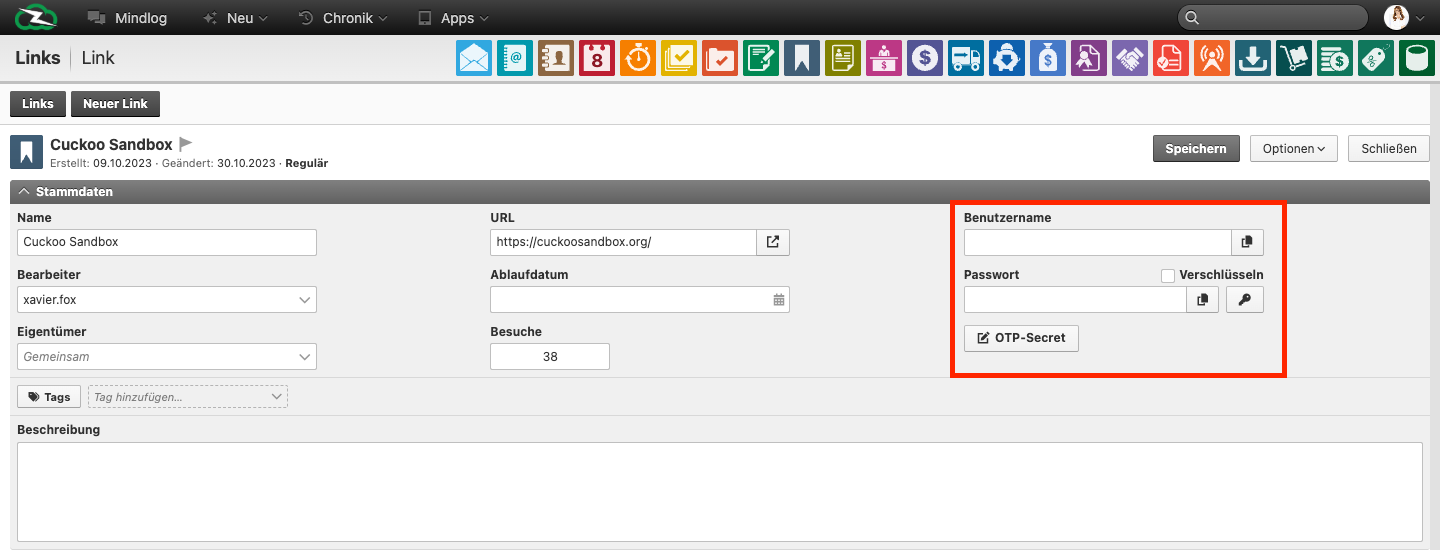
Each link record includes optional Username and Password fields alongside the URL. The Visits counter tracks how often the link has been opened. Use the OTP Secret field when the service requires a time-based one-time password in addition to regular credentials.
Link Detail View
Opening a link record shows all its fields alongside the Associations, Events, and Records panels on the right. Use associations to connect the link to contacts, accounts, or other business objects for quick access from related records.
Visiting a Link
To open a link in your browser, select it in the list and click Visit in the bottom toolbar. This opens the URL in a new browser tab.
Organizing Links
Tags and Categories
Use tags to categorize links by topic or purpose (e.g., "Development Tools", "Customer Portals", "Social Media"). Tags can be organized in hierarchical category trees.
Visibility
Control who can access a link via the Owner field:
- Public — All users can see the link.
- Group-specific — Only members of the selected group can see it.
- Private — Only you and administrators can see it.
Tips
- Share team credentials centrally — Use the Links module to maintain a shared directory of service logins instead of passing credentials via email or chat.
- Use tags to group links by department or function — For example, tag all development-related links with "Dev Tools" and all customer portals with "Customer Access".
- Archive outdated links — When a service is no longer used, archive the link rather than deleting it so the information remains available if needed.
Related Topics
- Tags & Categories — Organize links with hierarchical tags
- Groups & Permissions — Control link visibility by group