Servers
The Servers page is where administrators connect ZeyOS to external services for email, synchronization, and feed imports.
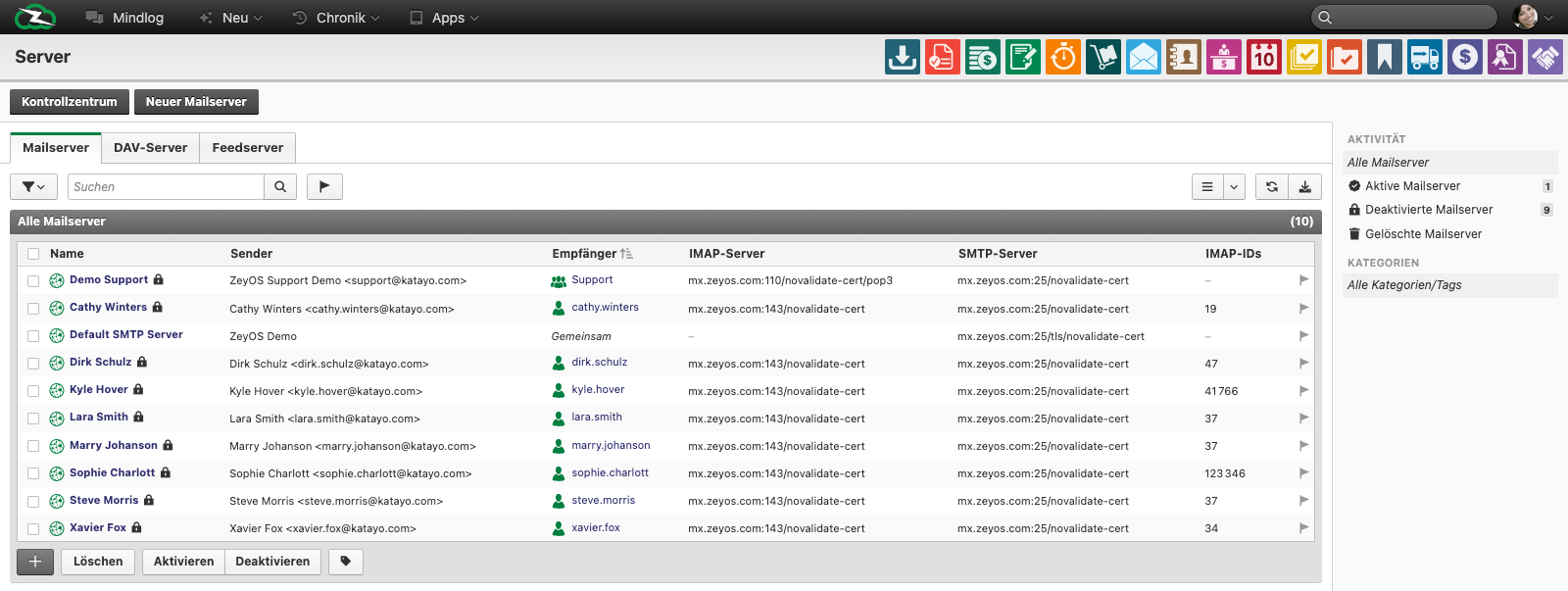
What This Page Is For
Use this page when ZeyOS needs to communicate with systems outside the application itself. Typical examples include shared mailboxes, personal sender accounts, and DAV-based contact or calendar synchronization.
Who Should Use It
This page should normally be maintained by administrators responsible for messaging, synchronization, or technical onboarding. Most end users only need to select a default server later in Personal Settings.
Available Server Types
| Server type | Purpose | Typical use |
|---|---|---|
| Mail (IMAP / SMTP) | Receive mail and send messages from personal or shared mailboxes | Inboxes, support addresses, shared sender identities |
| DAV | Synchronize contacts, appointments, and tasks with external groupware | CalDAV and CardDAV integrations |
| Feed | Pull external feeds into ZeyOS | RSS or import-style content feeds |
What You See on the Page
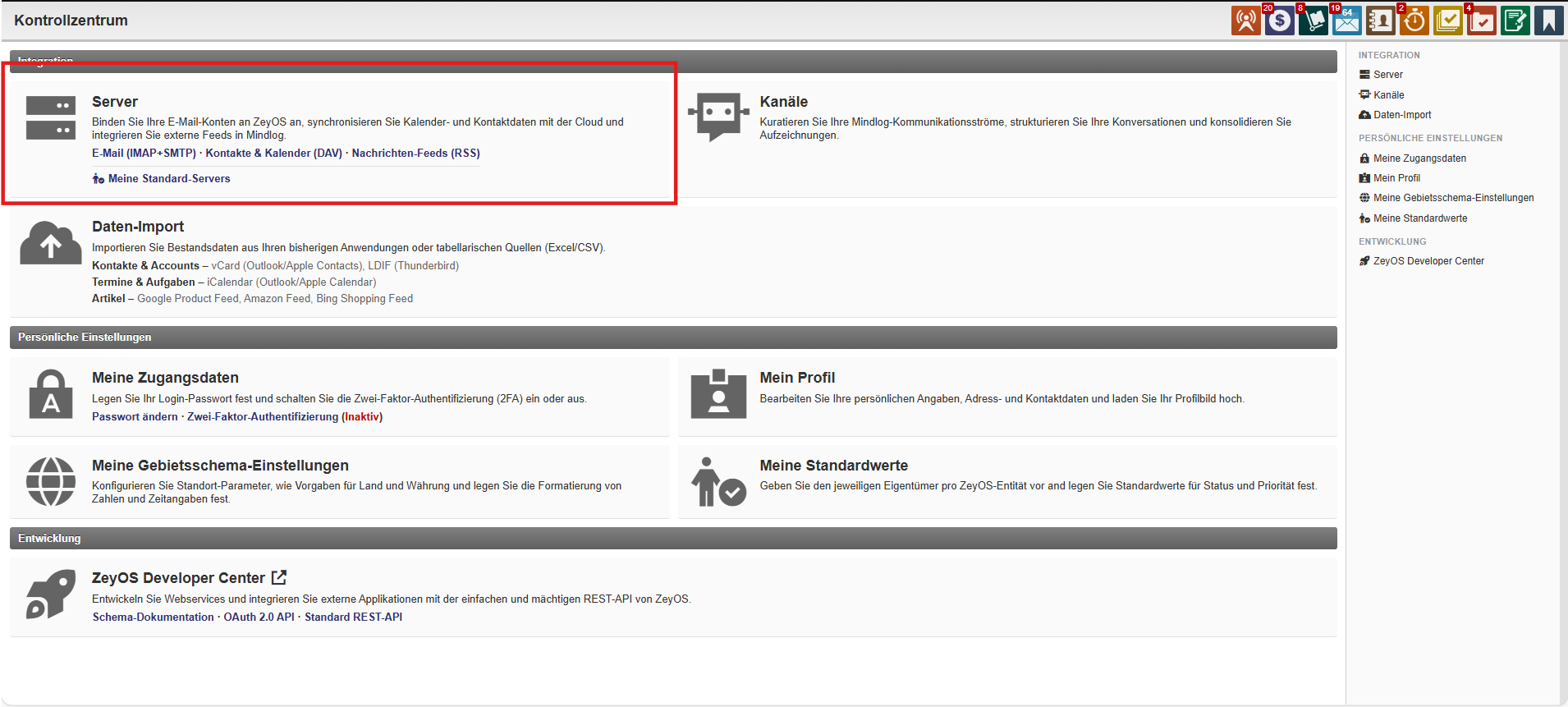
The live page is organized into tabs for Mailserver, DAV-Server, and Feedserver. In the mail tab, the list includes fields such as:
- Name
- Sender
- Recipient
- IMAP server
- SMTP server
- Imported IMAP IDs
The right sidebar lets you filter by activity status and tags. The bottom action bar supports bulk Delete, Activate, and Deactivate actions.

Typical Tasks
Add a new server
- Open Control Center > Servers.
- Switch to the correct tab: Mailserver, DAV-Server, or Feedserver.
- Click the creation action for the selected type.
- Enter host names, ports, login details, encryption settings, and any sender or recipient information required.
- Save the record and test the integration before handing it over to users.
Review or replace connection details
- Open the existing server record.
- Check whether sender addresses, endpoints, and credentials are still correct.
- Update the connection if the external provider has changed.
- Deactivate the server instead of deleting it immediately if you may still need the configuration for reference.
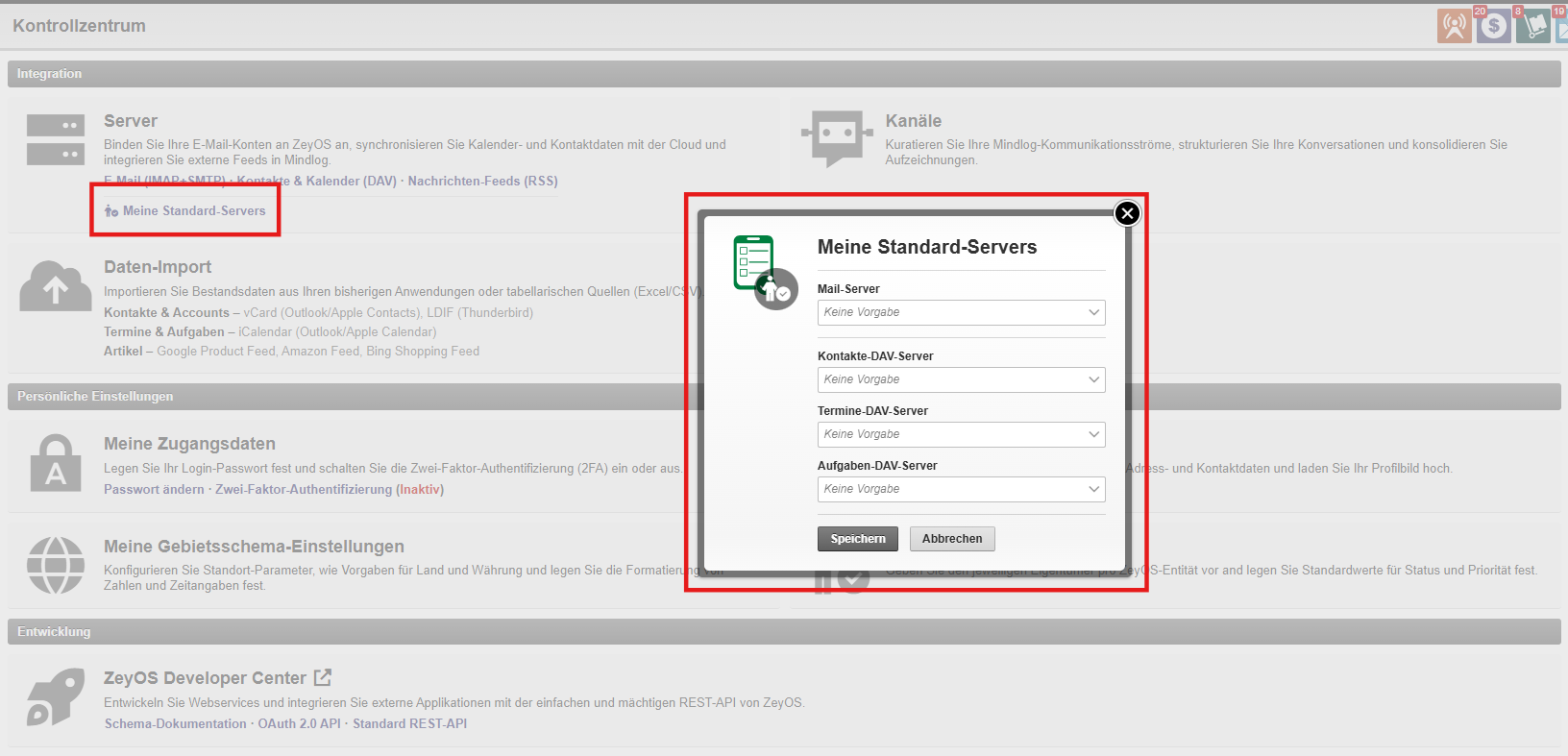
Coordinate default usage
After a server is created centrally, users can choose it as a personal default in Personal Settings. This is especially important for mail and DAV workflows.
Best Practices
- Use clear names for shared inboxes so users do not confuse them with personal accounts.
- Restrict server maintenance to a small admin group because incorrect settings can disrupt email and synchronization globally.
- Keep deprecated connections deactivated for a short transition period before deleting them.
Related Topics
- Personal Settings - Choose default mail and DAV servers for a user account.
- Messages & Mailing Lists - Mail servers are required for message workflows.
- Importing Data - Use imports for one-time bulk loads instead of continuous synchronization.